Brevo API Key Not Working? How to Fix the “Unrecognised IP Address” Error
If your Brevo API key suddenly stops working on WordPress — or a plugin says Brevo refused the request because of an unrecognised IP address — the key itself is almost always fine. Brevo is blocking calls from your web server’s IP address. Authorise that IP in Brevo and the same key works again. Creating a new key won’t help.
Why Brevo blocks your API key
Brevo can limit API keys to the IP addresses you approve. When you start using a key, Brevo is in a learning phase: it records the IP addresses that call your API and authorises them automatically. After 30 days without a new IP address, it switches to blocking. From then on, calls from any unknown address are refused, and Brevo emails the account owner the blocked IP and the key it used.
That is why a site that worked for months can break overnight: you moved to a new host, your host changed its outgoing IP address, you added a staging copy, or a plugin started calling Brevo from a different server.
How to recognise this error
- Brevo sent you an email about a new or blocked IP address.
- Your plugin shows a 401 error, or a message such as “Brevo refused the request: … unrecognised IP address …”.
- The same key works from your own computer but not from your website.
In Connect WordPress Forms to Brevo, click Test connection on the Settings tab. When Brevo refuses the key, the plugin shows Brevo’s own reason, IP address included.
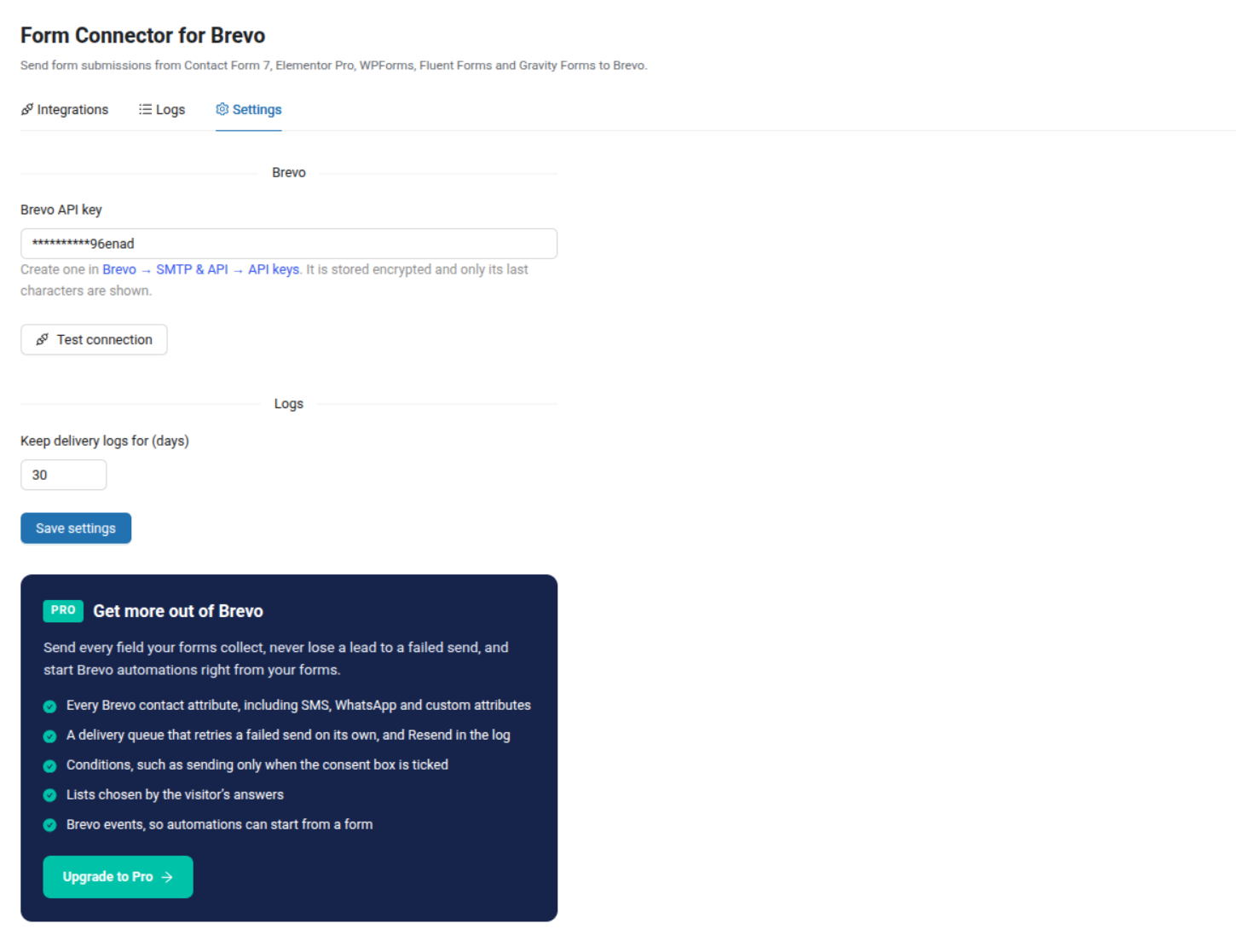
Fix it: authorise your server’s IP address
- Find the IP address. The quickest source is Brevo’s email or the error message: both name the blocked IP. Your hosting provider can also tell you the server’s outgoing IP address.
- In Brevo, open Settings → Security → Authorized IPs.
- Add the IP address and save.
- Back in WordPress, click Test connection again. It should now say Connected to Brevo account “…”.
One thing to know before you add an address: authorising an IP turns on blocking for every IP that is not on the list. If several sites or tools use your Brevo account — your website, a staging copy, a CRM sync — add all of their IP addresses at the same time.
Common mistakes
- Creating a new API key. The block is on the IP address, not the key, so a fresh key fails in exactly the same way.
- Authorising your own IP address. The request comes from your web server, not from your browser. Use the IP in Brevo’s email or in the error message.
- Using the CDN’s IP address. If your site is behind Cloudflare or another proxy, API calls still leave from the origin server.
- Forgetting staging. A staging or local copy of your site calls Brevo from a different IP address.
Frequently asked questions
Do I need a new API key after authorising the IP?
No. Once the IP address is authorised, the same key works again.
Will this happen again?
Only if your site starts calling Brevo from a new IP address, for example after a move to a new host. Add the new IP address before you switch.
Does the list affect Brevo SMTP too?
Yes. Authorised IP addresses apply to both API and SMTP calls, so the same fix helps when Brevo SMTP stops sending.
Connecting your forms to Brevo? Connect WordPress Forms to Brevo sends Contact Form 7, Elementor Pro, WPForms, Fluent Forms and Gravity Forms submissions to Brevo for free, and shows Brevo’s exact reason whenever a request is refused. Setup takes a few minutes with the getting-started guide.